Preconfigured connectors
editPreconfigured connectors
editIf you are running Kibana on-prem, you can preconfigure a connector to have all
the information it needs prior to startup by adding it to the kibana.yml file.
Elasticsearch Service provides a preconfigured email connector but you cannot create additional preconfigured connectors.
Preconfigured connectors offer the following benefits:
- Require no setup. Configuration and credentials needed to run an action are predefined, including the connector name and ID.
- Appear in all spaces because they are not saved objects.
- Cannot be edited or deleted.
Create preconfigured connectors
editAdd xpack.actions.preconfigured settings to your kibana.yml file. The
settings vary depending on which type of connector you’re adding.
Refer to Preconfigured connector settings.
This example shows a valid configuration for a Slack connector and a Webhook connector:
  xpack.actions.preconfigured:
    my-slack1:
      actionTypeId: .slack
      name: 'Slack #xyz'
      secrets:
        webhookUrl: '<WEBHOOK_URL>'
    webhook-service:
      actionTypeId: .webhook
      name: 'Email service'
      config:
        url: '<SERVICE_URL>'
        method: post
        headers:
          header1: value1
          header2: value2
      secrets:
        user: elastic
        password: changeme
|
The key is the connector identifier, |
|
|
|
|
|
|
|
|
|
|
|
|
Sensitive properties, such as passwords, can also be stored in the Kibana keystore.
View preconfigured connectors
editWhen you open the main menu, click Stack Management > Connectors. Preconfigured connectors appear regardless of which space you are in. They are tagged as “preconfigured”, and you cannot delete them.
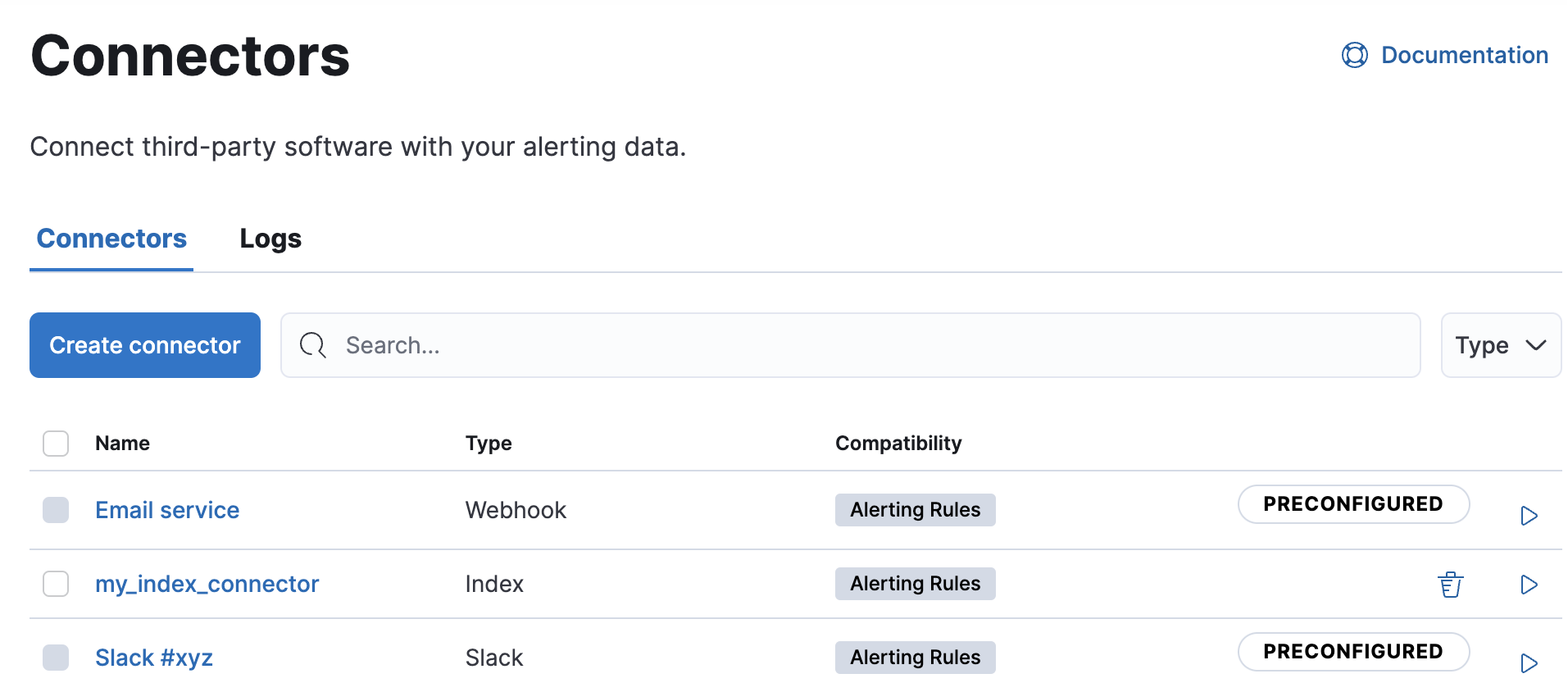
Clicking a preconfigured connector shows the description, but not the configuration.
Built-in preconfigured connectors
editKibana provides the following built-in preconfigured connectors:
Preconfigured alert history Elasticsearch index connector
editThis functionality is in technical preview and may be changed or removed in a future release. Elastic will work to fix any issues, but features in technical preview are not subject to the support SLA of official GA features.
Kibana offers a preconfigured index connector to facilitate indexing active alert data into Elasticsearch.
To use this connector, set xpack.actions.preconfiguredAlertHistoryEsIndex to true.
When you subsequently create rules, you can use the Alert history Elasticsearch index (preconfigured) connector.
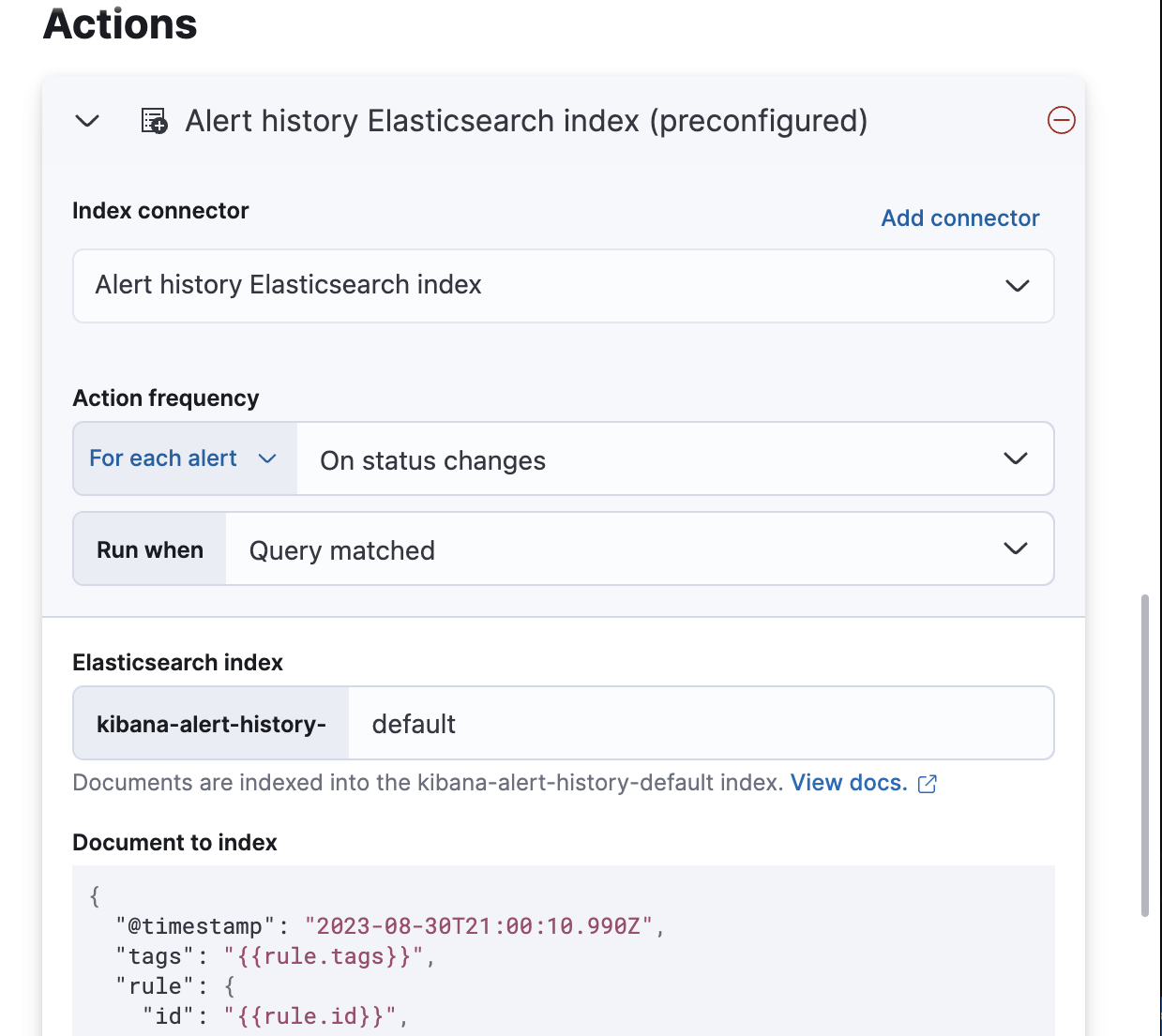
Documents are indexed using a preconfigured schema that captures the action variables available for the rule.
By default, these documents are indexed into the kibana-alert-history-default index, but you can specify a different index.
Index names must start with kibana-alert-history- to take advantage of the preconfigured alert history index template.
-
To write documents to the preconfigured index, you must have
allorwriteprivileges to thekibana-alert-history-*indices. -
The
kibana-alert-history-*indices are not configured to use ILM so they must be maintained manually. If the index size grows large, consider using the delete by query API to clean up older documents in the index.
Examples
edit- Amazon Bedrock connectors
- D3 Security connectors
- Email connectors
- OpenAI connectors
- IBM Resilient connectors
- Index connectors
- Jira connectors
- Microsoft Teams connectors
- Opsgenie connectors
- PagerDuty connectors
- Server log connectors
- ServiceNow ITOM connectors
- ServiceNow ITSM connectors
- ServiceNow SecOps connectors
- Slack connectors
- Swimlane connectors
- Torq connectors
- Tines connectors
- Webhook connectors
- Webhook - Case Management connectors
- xMatters connectors
Amazon Bedrock connectors
editThe following example creates an Amazon Bedrock connector:
xpack.actions.preconfigured:
  my-bedrock:
    name: preconfigured-bedrock-connector-type
    actionTypeId: .bedrock
    config:
      apiUrl: <REQUEST_URL>
      defaultModel: anthropic.claude-v2
    secrets:
      accessKey: key-value
      secret: secret-value
|
The Amazon Bedrock request URL. |
|
|
The default model to use for requests. Current support is for the Anthropic Claude models, defaulting to Claude 2. |
|
|
The AWS access key for authentication. |
|
|
The AWS secret for authentication. |
D3 Security connectors
editThe following example creates a D3 Security connector:
xpack.actions.preconfigured:
  my-d3security:
    name: preconfigured-d3security-connector-type
    actionTypeId: .d3security
    config:
      url: <URL>
    secrets:
      token: <TOKEN>
Email connectors
editThe following example creates an email connector:
xpack.actions.preconfigured:
  my-email:
    name: preconfigured-email-connector-type
    actionTypeId: .email
    config:
      service: other
      from: testsender@test.com
      host: validhostname
      port: 8080
      secure: false
      hasAuth: true
    secrets:
      user: testuser
      password: passwordkeystorevalue
|
The name of the email service. If |
|
|
The email address for all emails sent with this connector. It must be specified in |
|
|
The host name of the service provider. |
|
|
The port to connect to on the service provider. |
|
|
If true, the connection will use TLS when connecting to the service provider. |
|
|
If |
|
|
A user name for authentication. Required if |
|
|
A password for authentication. Should be stored in the Kibana keystore. Required if |
Amazon SES (Simple Email Service)
editUse the following email connector configuration to send email from the Amazon Simple Email Service (SES) SMTP service:
config:
    service: ses
    // `host`, `port` and `secure` have the following default values and do not need to set:
    // host: email-smtp.us-east-1.amazonaws.com
    // port: 465
    // secure: true
secrets:
    user: <username>
    password: <password>
Gmail
editUse the following email connector configuration to send email from the Gmail SMTP service:
  config:
    service: gmail
    // `host`, `port` and `secure` have the following default values and do not need to set:
    // host: smtp.gmail.com
    // port: 465
    // secure: true
  secrets:
    user: <username>
    password: <password>
Microsoft Exchange with basic authentication
edit[7.16.0] Deprecated in 7.16.0. This Microsoft Exchange configuration is deprecated and will be removed later because Microsoft is deprecating basic authentication.
config:
    service: other
    host: <your exchange server>
    port: 465
    secure: true
    from: <email address of service account>
secrets:
    user: <email address of service account>
    password: <password>
|
Some organizations configure Exchange to validate that the |
|
|
Many organizations support use of your email address as your username. Check with your system administrator if you receive authentication-related failures. |
Microsoft Exchange with OAuth 2.0
editUse the following email connector configuration to send email from Microsoft Exchange:
config:
    service: exchange_server
    clientId: <The Application (client) ID>
    tenantId: <The directory tenant ID, in GUID format.>
    from: <email address of service account>
secrets:
    clientSecret: <URL-encoded string>
|
This application information is on the Azure portal – App registrations. |
|
|
Some organizations configure Exchange to validate that the |
Outlook.com
editUse the following email connector configuration to send email from the Outlook.com SMTP service:
config:
    service: outlook365
    // `host`, `port` and `secure` have the following default values and do not need to set:
    // host: smtp.office365.com
    // port: 587
    // secure: false
secrets:
    user: <email.address>
    password: <password>
OpenAI connectors
editThe following example creates a OpenAI connector:
xpack.actions.preconfigured:
  my-open-ai:
    name: preconfigured-openai-connector-type
    actionTypeId: .gen-ai
    config:
      apiUrl: <REQUEST_URL>
      apiProvider: 'OpenAI'
      defaultModel: gpt-4
    secrets:
      apiKey: superlongapikey
|
The OpenAI request URL. |
|
|
The OpenAI API provider, either |
|
|
The default model to use for requests. This setting is optional and applicable only when |
|
|
The OpenAI or Azure OpenAI API key for authentication. |
IBM Resilient connectors
editThe following example creates a IBM Resilient connector:
xpack.actions.preconfigured:
 my-resilient:
    name: preconfigured-resilient-connector-type
    actionTypeId: .resilient
    config:
      apiUrl: <API_URL>
      orgId: ES
    secrets:
      apiKeyId: testuser
      apiKeySecret: tokenkeystorevalue
|
The IBM Resilient instance URL. |
|
|
The IBM Resilient organization identifier. |
|
|
The authentication key ID for HTTP basic authentication. |
|
|
The authentication key secret for HTTP basic authentication. NOTE: This value should be stored in the Kibana keystore. |
Index connectors
editThe following example creates a index connector:
xpack.actions.preconfigured:
  my-index:
    name: preconfigured-index-connector-type
    actionTypeId: .index
    config:
      index: .kibana
      executionTimeField: my-field
Jira connectors
editThe following example creates a Jira connector:
xpack.actions.preconfigured:
  my-jira:
    name: preconfigured-jira-connector-type
    actionTypeId: .jira
    config:
      apiUrl: <JIRA_INSTANCE_URL>
      projectKey: ES
    secrets:
      email: testuser
      apiToken: tokenkeystorevalue
|
The Jira instance URL. |
|
|
The Jira project key. |
|
|
The account email for HTTP basic authentication. |
|
|
The API authentication token for HTTP basic authentication. NOTE: This value should be stored in the Kibana keystore. |
Microsoft Teams connectors
editThe following example creates a Microsoft Teams connector:
xpack.actions.preconfigured:
  my-teams:
    name: preconfigured-teams-connector-type
    actionTypeId: .teams
    secrets:
      webhookUrl: '<WEBHOOK_URL>'
Opsgenie connectors
editThe following example creates an Opsgenie connector:
xpack.actions.preconfigured:
  my-opsgenie:
    name: preconfigured-opsgenie-connector-type
    actionTypeId: .opsgenie
    config:
      apiUrl: <OPSGENIE_URL>
    secrets:
      apiKey: apikey
PagerDuty connectors
editThe following example creates a PagerDuty connector:
xpack.actions.preconfigured:
  my-pagerduty:
    name: preconfigured-pagerduty-connector-type
    actionTypeId: .pagerduty
    config:
      apiUrl: <API_URL>
    secrets:
      routingKey: testroutingkey
|
The PagerDuty event URL. |
|
|
A 32 character PagerDuty Integration Key for an integration on a service, also referred to as the routing key. |
Server log connectors
editThe following example creates a server log connector:
xpack.actions.preconfigured:
  my-server-log:
    name: preconfigured-server-log-connector-type
    actionTypeId: .server-log
ServiceNow ITOM connectors
editThe following example creates a ServiceNow ITOM connector with basic authentication:
xpack.actions.preconfigured:
  my-servicenow-itom:
    name: preconfigured-servicenow-connector-type
    actionTypeId: .servicenow-itom
    config:
      apiUrl: https://example.service-now.com/
    secrets:
      username: testuser
      password: passwordkeystorevalue
|
The ServiceNow instance URL. |
|
|
A user name. |
|
|
A password. NOTE: This value should be stored in the Kibana keystore. |
The following example creates a ServiceNow ITOM connector with OAuth authentication:
xpack.actions.preconfigured:
  my-servicenow:
    name: preconfigured-oauth-servicenow-connector-type
    actionTypeId: .servicenow-itom
    config:
      apiUrl: https://example.service-now.com/
      isOAuth: true
      userIdentifierValue: testuser@email.com
      clientId: abcdefghijklmnopqrstuvwxyzabcdef
      jwtKeyId: fedcbazyxwvutsrqponmlkjihgfedcba
    secrets:
      clientSecret: secretsecret
      privateKey: -----BEGIN RSA PRIVATE KEY-----\nprivatekeyhere\n-----END RSA PRIVATE KEY---
|
Specifies whether the connector uses basic or OAuth authentication. |
|
|
The user identifier. |
|
|
The client identifier assigned to your OAuth application. |
|
|
The key identifier assigned to the JWT verifier map of your OAuth application. |
|
|
The client secret assigned to your OAuth application. |
|
|
The RSA private key. If it has a password, you must also provide |
ServiceNow ITSM connectors
editThe following example creates a ServiceNow ITSM connector with basic authentication:
xpack.actions.preconfigured:
  my-servicenow:
    name: preconfigured-servicenow-connector-type
    actionTypeId: .servicenow
    config:
      apiUrl: https://example.service-now.com/
      usesTableApi: false
    secrets:
      username: testuser
      password: passwordkeystorevalue
|
The ServiceNow instance URL. |
|
|
Specifies whether the connector uses the Table API or the Import Set API. If |
|
|
The user name. |
|
|
The password. NOTE: This value should be stored in the Kibana keystore. |
The following example creates a ServiceNow ITSM connector with OAuth authentication:
xpack.actions.preconfigured:
  my-servicenow:
    name: preconfigured-oauth-servicenow-connector-type
    actionTypeId: .servicenow
    config:
      apiUrl: https://example.service-now.com/
      usesTableApi: false
      isOAuth: true
      userIdentifierValue: testuser@email.com
      clientId: abcdefghijklmnopqrstuvwxyzabcdef
      jwtKeyId: fedcbazyxwvutsrqponmlkjihgfedcba
    secrets:
      clientSecret: secretsecret
      privateKey: -----BEGIN RSA PRIVATE KEY-----\nprivatekeyhere\n-----END RSA PRIVATE KEY---
|
Specifies whether the connector uses basic or OAuth authentication. |
|
|
The user identifier. |
|
|
The client identifier assigned to your OAuth application. |
|
|
The key ID assigned to the JWT verifier map of your OAuth application. |
|
|
The client secret assigned to the OAuth application. |
|
|
The RSA private key. If it has a password, you must also provide |
ServiceNow SecOps connectors
editThe following example creates a ServiceNow SecOps connector with basic authentication:
xpack.actions.preconfigured:
  my-servicenow-sir:
    name: preconfigured-servicenow-connector-type
    actionTypeId: .servicenow-sir
    config:
      apiUrl: https://example.service-now.com/
      usesTableApi: false
    secrets:
      username: testuser
      password: passwordkeystorevalue
|
The ServiceNow instance URL. |
|
|
Specifies whether the connector uses the Table API or the Import Set API. If |
|
|
The user name. |
|
|
The password. NOTE: This value should be stored in the Kibana keystore. |
The following example creates a ServiceNow SecOps connector with OAuth authentication:
xpack.actions.preconfigured:
  my-servicenow:
    name: preconfigured-oauth-servicenow-connector-type
    actionTypeId: .servicenow-sir
    config:
      apiUrl: https://example.service-now.com/
      usesTableApi: false
      isOAuth: true
      userIdentifierValue: testuser@email.com
      clientId: abcdefghijklmnopqrstuvwxyzabcdef
      jwtKeyId: fedcbazyxwvutsrqponmlkjihgfedcba
    secrets:
      clientSecret: secretsecret
      privateKey: -----BEGIN RSA PRIVATE KEY-----\nprivatekeyhere\n-----END RSA PRIVATE KEY---
|
Specifies whether the connector uses basic or OAuth authentication. |
|
|
The user identifier. |
|
|
The client identifier assigned to the OAuth application. |
|
|
The key ID assigned to the JWT verifier map of your OAuth application. |
|
|
The client secret assigned to the OAuth application. |
|
|
The RSA private key. If it has a password, you must also specify
|
Slack connectors
editThe following example creates a Slack connector with webhook:
xpack.actions.preconfigured:
  my-slack:
    name: preconfigured-slack-webhook-connector-type
    actionTypeId: .slack
    secrets:
      webhookUrl: '<SLACK_WEBHOOK_URL>'
The following example creates a Slack connector with web API:
xpack.actions.preconfigured:
  my-slack:
    name: preconfigured-slack-api-connector-type
    actionTypeId: .slack_api
    secrets:
      token: 'xoxb-xxxx-xxxx-xxxx'
Swimlane connectors
editThe following example creates a Swimlane connector:
xpack.actions.preconfigured:
  my-swimlane:
    name: preconfigured-swimlane-connector-type
    actionTypeId: .swimlane
    config:
      apiUrl: <SWIMLANE_INSTANCE_URL>
      appId: app-id
      mappings:
        alertIdConfig:
          fieldType: text
          id: agp4s
          key: alert-id
          name: Alert ID
        caseIdConfig:
          fieldType: text
          id: ae1mi
          key: case-id
          name: Case ID
        caseNameConfig:
          fieldType: text
          id: anxnr
          key: case-name
          name: Case Name
        commentsConfig:
          fieldType: comments
          id: au18d
          key: comments
          name: Comments
        descriptionConfig:
          fieldType: text
          id: ae1gd
          key: description
          name: Description
        ruleNameConfig:
          fieldType: text
          id: avfsl
          key: rule-name
          name: Rule Name
        severityConfig:
          fieldType: text
          id: a71ik
          key: severity
          name: severity
    secrets:
      apiToken: tokenkeystorevalue
|
The Swimlane instance URL. |
|
|
The Swimlane application identifier. |
|
|
Field mappings for properties such as the alert identifer, severity, and rule name. |
|
|
The API authentication token for HTTP basic authentication. NOTE: This value should be stored in the Kibana keystore. |
Tines connectors
editThe following example creates a Tines connector:
xpack.actions.preconfigured:
my-tines:
    name: preconfigured-tines-connector-type
    actionTypeId: .tines
    config:
      url: <TENANT_URL>
    secrets:
      email: some.address@example.com
      token: ausergeneratedapitoken
Torq connectors
editThe following example creates a Torq connector:
xpack.actions.preconfigured:
  my-torq:
    name: preconfigured-torq-connector-type
    actionTypeId: .torq
    config:
      webhookIntegrationUrl: <WEBHOOK_URL>
    secrets:
      token: mytorqtoken
|
The endpoint URL of the Elastic Security integration in Torq. |
|
|
The secret of the webhook authentication header. |
Webhook connectors
editThe following example creates a webhook connector with basic authentication:
xpack.actions.preconfigured:
  my-webhook:
    name: preconfigured-webhook-connector-type
    actionTypeId: .webhook
    config:
      url: <WEB_SERVICE_URL>
      method: post
      headers:
        testheader: testvalue
      hasAuth: true
    secrets:
      user: testuser
      password: passwordkeystorevalue
|
The web service request URL. If you are using the |
|
|
The HTTP request method, either |
|
|
A set of key-value pairs sent as headers with the request. |
|
|
If |
|
|
A valid user name. Required if |
|
|
A valid password. Required if |
SSL authentication is not supported in preconfigured webhook connectors.
Webhook - Case Management connectors
editThe following example creates a Webhook - Case Management connector:
xpack.actions.preconfigured:
  my-case-management-webhook:
    name: Case Management Webhook Connector
    actionTypeId: .cases-webhook
    config:
      hasAuth: true
      headers:
        'content-type': 'application/json'
      createIncidentUrl: 'https://testing-jira.atlassian.net/rest/api/2/issue'
      createIncidentMethod: 'post'
      createIncidentJson: '{"fields":{"summary":{{{case.title}}},"description":{{{case.description}}},"labels":{{{case.tags}}}'
      getIncidentUrl: 'https://testing-jira.atlassian.net/rest/api/2/issue/{{{external.system.id}}}'
      getIncidentResponseExternalTitleKey: 'key'
      viewIncidentUrl: 'https://testing-jira.atlassian.net/browse/{{{external.system.title}}}'
      updateIncidentUrl: 'https://testing-jira.atlassian.net/rest/api/2/issue/{{{external.system.id}}}'
      updateIncidentMethod: 'put'
      updateIncidentJson: '{"fields":{"summary":{{{case.title}}},"description":{{{case.description}}},"labels":{{{case.tags}}}'
      createCommentMethod: 'post',
      createCommentUrl: 'https://testing-jira.atlassian.net/rest/api/2/issue/{{{external.system.id}}}/comment',
      createCommentJson: '{"body": {{{case.comment}}}}',
    secrets:
      user: testuser
      password: passwordvalue
|
If |
|
|
A set of key-value pairs sent as headers with the request. |
|
|
A REST API URL string to create a case in the third-party system. |
|
|
The REST API HTTP request method to create a case in the third-party system. |
|
|
A stringified JSON payload with Mustache variables that is sent to the create case URL to create a case. |
|
|
A REST API URL string with an external service ID Mustache variable to get the case from the third-party system. |
|
|
A string from the response body of the get case method that corresponds to the external service title. |
|
|
A URL string with either the external service ID or external service title Mustache variable to view a case in the external system. |
|
|
The REST API URL to update the case by ID in the third-party system. |
|
|
The REST API HTTP request method to update the case in the third-party system. |
|
|
A stringified JSON payload with Mustache variables that is sent to the update case URL to update a case. |
|
|
The REST API HTTP request method to create a case comment in the third-party system. |
|
|
A REST API URL string to create a case comment by ID in the third-party system. |
|
|
A stringified JSON payload with Mustache variables that is sent to the create comment URL to create a case comment. |
|
|
A user name, which is required when |
|
|
A password, which is required when |
xMatters connectors
editThe following example creates an xMatters connector with basic authentication:
xpack.actions.preconfigured:
  my-xmatters:
    name: preconfigured-xmatters-connector-type
    actionTypeId: .xmatters
    config:
      configUrl: <REQUEST_URL>
      usesBasic: true
    secrets:
      user: testuser
      password: passwordkeystorevalue
|
The request URL for the Elastic Alerts trigger in xMatters. |
|
|
Indicates whether the connector uses HTTP basic authentication. If |
|
|
A user name for authentication, which is required when |
|
|
A password for authentication, which is required when |
The following example creates an xMatters connector with URL authentication: