ES|QL commands
editES|QL commands
editSource commands
editAn ES|QL source command produces a table, typically with data from Elasticsearch. An ES|QL query must start with a source command.

ES|QL supports these source commands:
Processing commands
editES|QL processing commands change an input table by adding, removing, or changing rows and columns.

ES|QL supports these processing commands:
FROM
editSyntax
FROM index_pattern [METADATA fields]
Parameters
-
index_pattern - A list of indices, data streams or aliases. Supports wildcards and date math.
-
fields - A comma-separated list of metadata fields to retrieve.
Description
The FROM source command returns a table with data from a data stream, index,
or alias. Each row in the resulting table represents a document. Each column
corresponds to a field, and can be accessed by the name of that field.
By default, an ES|QL query without an explicit LIMIT uses an implicit
limit of 500. This applies to FROM too. A FROM command without LIMIT:
FROM employees
is executed as:
FROM employees
| LIMIT 500
Examples
FROM employees
You can use date math to refer to indices, aliases and data streams. This can be useful for time series data, for example to access today’s index:
FROM <logs-{now/d}>
Use comma-separated lists or wildcards to query multiple data streams, indices, or aliases:
FROM employees-00001,other-employees-*
Use the METADATA directive to enable metadata fields:
FROM employees [METADATA _id]
ROW
editSyntax
ROW column1 = value1[, ..., columnN = valueN]
Parameters
-
columnX - The column name.
-
valueX - The value for the column. Can be a literal, an expression, or a function.
Description
The ROW source command produces a row with one or more columns with values
that you specify. This can be useful for testing.
Examples
ROW a = 1, b = "two", c = null
| a:integer | b:keyword | c:null |
|---|---|---|
1 |
"two" |
null |
Use square brackets to create multi-value columns:
ROW a = [2, 1]
ROW supports the use of functions:
ROW a = ROUND(1.23, 0)
SHOW
editSyntax
SHOW item
Parameters
-
item -
Can be
INFOorFUNCTIONS.
Description
The SHOW source command returns information about the deployment and
its capabilities:
-
Use
SHOW INFOto return the deployment’s version, build date and hash. -
Use
SHOW FUNCTIONSto return a list of all supported functions and a synopsis of each function.
Examples
SHOW functions
| WHERE STARTS_WITH(name, "is_")
| name:keyword | synopsis:keyword | argNames:keyword | argTypes:keyword | argDescriptions:keyword | returnType:keyword | description:keyword | optionalArgs:boolean | variadic:boolean |
|---|---|---|---|---|---|---|---|---|
is_finite |
boolean is_finite(n:double) |
n |
double |
"A floating-point value" |
boolean |
"Returns true if the argument is a finite floating-point value." |
false |
false |
is_infinite |
boolean is_infinite(n:double) |
n |
double |
"A floating-point value" |
boolean |
"Returns true if the specified floating-point value is infinitely large in magnitude." |
false |
false |
is_nan |
boolean is_nan(n:double) |
n |
double |
"A floating-point value" |
boolean |
"Returns true if the argument is a Not-a-Number (NaN) value." |
false |
false |
DISSECT
editSyntax
DISSECT input "pattern" [APPEND_SEPARATOR="<separator>"]
Parameters
-
input -
The column that contains the string you want to structure. If the column has
multiple values,
DISSECTwill process each value. -
pattern - A dissect pattern.
-
<separator> - A string used as the separator between appended values, when using the append modifier.
Description
DISSECT enables you to extract
structured data out of a string. DISSECT matches the string against a
delimiter-based pattern, and extracts the specified keys as columns.
Refer to Process data with DISSECT for the syntax of dissect patterns.
Examples
The following example parses a string that contains a timestamp, some text, and an IP address:
ROW a = "2023-01-23T12:15:00.000Z - some text - 127.0.0.1"
| DISSECT a "%{date} - %{msg} - %{ip}"
| KEEP date, msg, ip
| date:keyword | msg:keyword | ip:keyword |
|---|---|---|
2023-01-23T12:15:00.000Z |
some text |
127.0.0.1 |
By default, DISSECT outputs keyword string columns. To convert to another
type, use Type conversion functions:
ROW a = "2023-01-23T12:15:00.000Z - some text - 127.0.0.1"
| DISSECT a "%{date} - %{msg} - %{ip}"
| KEEP date, msg, ip
| EVAL date = TO_DATETIME(date)
| msg:keyword | ip:keyword | date:date |
|---|---|---|
some text |
127.0.0.1 |
2023-01-23T12:15:00.000Z |
DROP
editSyntax
DROP columns
Parameters
-
columns - A comma-separated list of columns to remove. Supports wildcards.
Description
The DROP processing command removes one or more columns.
Examples
FROM employees
| DROP height
Rather than specify each column by name, you can use wildcards to drop all columns with a name that matches a pattern:
FROM employees
| DROP height*
ENRICH
editSyntax
ENRICH policy [ON match_field] [WITH [new_name1 = ]field1, [new_name2 = ]field2, ...]
Parameters
-
policy - The name of the enrich policy. You need to create and execute the enrich policy first.
-
match_field -
The match field.
ENRICHuses its value to look for records in the enrich index. If not specified, the match will be performed on the column with the same name as thematch_fielddefined in the enrich policy. -
fieldX - The enrich fields from the enrich index that are added to the result as new columns. If a column with the same name as the enrich field already exists, the existing column will be replaced by the new column. If not specified, each of the enrich fields defined in the policy is added
-
new_nameX - Enables you to change the name of the column that’s added for each of the enrich fields. Defaults to the enrich field name.
Description
ENRICH enables you to add data from existing indices as new columns using an
enrich policy. Refer to Data enrichment for information about setting up a
policy.
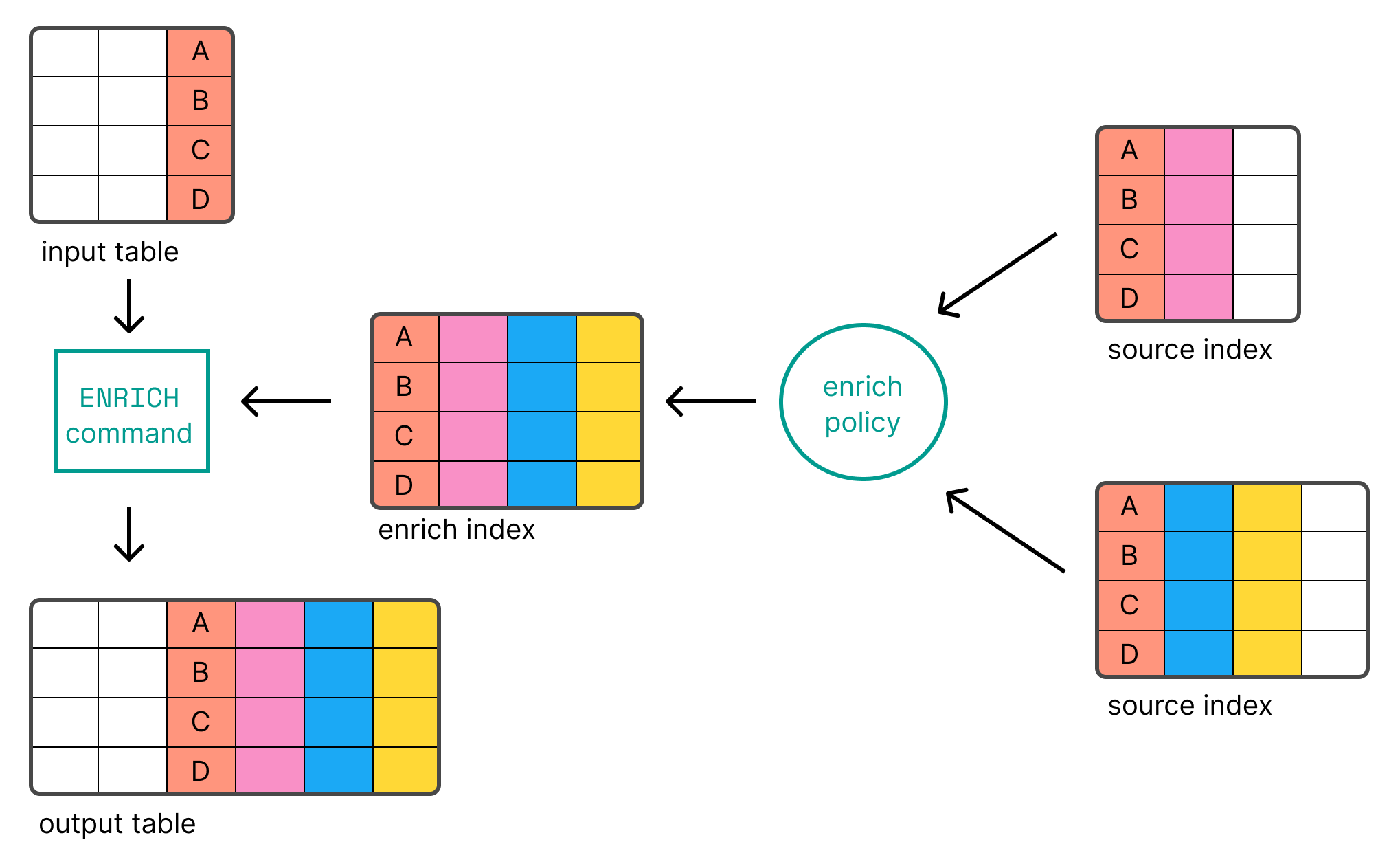
Before you can use ENRICH, you need to create
and execute an enrich policy.
Examples
The following example uses the languages_policy enrich policy to add a new
column for each enrich field defined in the policy. The match is performed using
the match_field defined in the enrich policy and
requires that the input table has a column with the same name (language_code
in this example). ENRICH will look for records in the
enrich index based on the match field value.
ROW language_code = "1"
| ENRICH languages_policy
| language_code:keyword | language_name:keyword |
|---|---|
1 |
English |
To use a column with a different name than the match_field defined in the
policy as the match field, use ON <column-name>:
ROW a = "1"
| ENRICH languages_policy ON a
| a:keyword | language_name:keyword |
|---|---|
1 |
English |
By default, each of the enrich fields defined in the policy is added as a
column. To explicitly select the enrich fields that are added, use
WITH <field1>, <field2>, ...:
ROW a = "1"
| ENRICH languages_policy ON a WITH language_name
| a:keyword | language_name:keyword |
|---|---|
1 |
English |
You can rename the columns that are added using WITH new_name=<field1>:
ROW a = "1"
| ENRICH languages_policy ON a WITH name = language_name
| a:keyword | name:keyword |
|---|---|
1 |
English |
In case of name collisions, the newly created columns will override existing columns.
EVAL
editSyntax
EVAL [column1 =] value1[, ..., [columnN =] valueN]
Parameters
-
columnX - The column name.
-
valueX - The value for the column. Can be a literal, an expression, or a function.
Description
The EVAL processing command enables you to append new columns with calculated
values. EVAL supports various functions for calculating values. Refer to
Functions for more information.
Examples
FROM employees
| SORT emp_no
| KEEP first_name, last_name, height
| EVAL height_feet = height * 3.281, height_cm = height * 100
| first_name:keyword | last_name:keyword | height:double | height_feet:double | height_cm:double |
|---|---|---|---|---|
Georgi |
Facello |
2.03 |
6.66043 |
202.99999999999997 |
Bezalel |
Simmel |
2.08 |
6.82448 |
208.0 |
Parto |
Bamford |
1.83 |
6.004230000000001 |
183.0 |
If the specified column already exists, the existing column will be dropped, and the new column will be appended to the table:
FROM employees
| SORT emp_no
| KEEP first_name, last_name, height
| EVAL height = height * 3.281
| first_name:keyword | last_name:keyword | height:double |
|---|---|---|
Georgi |
Facello |
6.66043 |
Bezalel |
Simmel |
6.82448 |
Parto |
Bamford |
6.004230000000001 |
Specifying the output column name is optional. If not specified, the new column
name is equal to the expression. The following query adds a column named
height*3.281:
FROM employees
| SORT emp_no
| KEEP first_name, last_name, height
| EVAL height * 3.281
| first_name:keyword | last_name:keyword | height:double | height*3.281:double |
|---|---|---|---|
Georgi |
Facello |
2.03 |
6.66043 |
Bezalel |
Simmel |
2.08 |
6.82448 |
Parto |
Bamford |
1.83 |
6.004230000000001 |
Because this name contains special characters, it needs to be
quoted with backticks (`) when using it in subsequent commands:
FROM employees
| EVAL height * 3.281
| STATS avg_height_feet = AVG(`height*3.281`)
| avg_height_feet:double |
|---|
5.801464200000001 |
GROK
editSyntax
GROK input "pattern"
Parameters
-
input -
The column that contains the string you want to structure. If the column has
multiple values,
GROKwill process each value. -
pattern - A grok pattern.
Description
GROK enables you to extract
structured data out of a string. GROK matches the string against patterns,
based on regular expressions, and extracts the specified patterns as columns.
Refer to Process data with GROK for the syntax of grok patterns.
Examples
The following example parses a string that contains a timestamp, an IP address, an email address, and a number:
ROW a = "2023-01-23T12:15:00.000Z 127.0.0.1 [email protected] 42"
| GROK a "%{TIMESTAMP_ISO8601:date} %{IP:ip} %{EMAILADDRESS:email} %{NUMBER:num}"
| KEEP date, ip, email, num
| date:keyword | ip:keyword | email:keyword | num:keyword |
|---|---|---|---|
2023-01-23T12:15:00.000Z |
127.0.0.1 |
42 |
By default, GROK outputs keyword string columns. int and float types can
be converted by appending :type to the semantics in the pattern. For example
{NUMBER:num:int}:
ROW a = "2023-01-23T12:15:00.000Z 127.0.0.1 [email protected] 42"
| GROK a "%{TIMESTAMP_ISO8601:date} %{IP:ip} %{EMAILADDRESS:email} %{NUMBER:num:int}"
| KEEP date, ip, email, num
| date:keyword | ip:keyword | email:keyword | num:integer |
|---|---|---|---|
2023-01-23T12:15:00.000Z |
127.0.0.1 |
42 |
For other type conversions, use Type conversion functions:
ROW a = "2023-01-23T12:15:00.000Z 127.0.0.1 [email protected] 42"
| GROK a "%{TIMESTAMP_ISO8601:date} %{IP:ip} %{EMAILADDRESS:email} %{NUMBER:num:int}"
| KEEP date, ip, email, num
| EVAL date = TO_DATETIME(date)
| ip:keyword | email:keyword | num:integer | date:date |
|---|---|---|---|
127.0.0.1 |
42 |
2023-01-23T12:15:00.000Z |
KEEP
editSyntax
KEEP columns
Parameters
columns::
A comma-separated list of columns to keep. Supports wildcards.
Description
The KEEP processing command enables you to specify what columns are returned
and the order in which they are returned.
Examples
The columns are returned in the specified order:
FROM employees
| KEEP emp_no, first_name, last_name, height
| emp_no:integer | first_name:keyword | last_name:keyword | height:double |
|---|---|---|---|
10001 |
Georgi |
Facello |
2.03 |
10002 |
Bezalel |
Simmel |
2.08 |
10003 |
Parto |
Bamford |
1.83 |
10004 |
Chirstian |
Koblick |
1.78 |
10005 |
Kyoichi |
Maliniak |
2.05 |
Rather than specify each column by name, you can use wildcards to return all columns with a name that matches a pattern:
FROM employees
| KEEP h*
The asterisk wildcard (*) by itself translates to all columns that do not
match the other arguments. This query will first return all columns with a name
that starts with h, followed by all other columns:
FROM employees
| KEEP h*, *
LIMIT
editSyntax
LIMIT max_number_of_rows
Parameters
-
max_number_of_rows - The maximum number of rows to return.
Description
The LIMIT processing command enables you to limit the number of rows that are
returned.
Queries do not return more than 10,000 rows, regardless of the LIMIT command’s
value.
This limit only applies to the number of rows that are retrieved by the query. Queries and aggregations run on the full data set.
To overcome this limitation:
-
Reduce the result set size by modifying the query to only return relevant
data. Use
WHEREto select a smaller subset of the data. -
Shift any post-query processing to the query itself. You can use the ES|QL
STATS ... BYcommand to aggregate data in the query.
The default and maximum limits can be changed using these dynamic cluster settings:
-
esql.query.result_truncation_default_size -
esql.query.result_truncation_max_size
Example
FROM employees
| SORT emp_no ASC
| LIMIT 5
MV_EXPAND
editSyntax
MV_EXPAND column
Parameters
-
column - The multivalued column to expand.
Description
The MV_EXPAND processing command expands multivalued columns into one row per
value, duplicating other columns.
Example
ROW a=[1,2,3], b="b", j=["a","b"]
| MV_EXPAND a
| a:integer | b:keyword | j:keyword |
|---|---|---|
1 |
b |
["a", "b"] |
2 |
b |
["a", "b"] |
3 |
b |
["a", "b"] |
RENAME
editSyntax
RENAME old_name1 AS new_name1[, ..., old_nameN AS new_nameN]
Parameters
-
old_nameX - The name of a column you want to rename.
-
new_nameX - The new name of the column.
Description
The RENAME processing command renames one or more columns. If a column with
the new name already exists, it will be replaced by the new column.
Examples
FROM employees
| KEEP first_name, last_name, still_hired
| RENAME  still_hired AS employed
Multiple columns can be renamed with a single RENAME command:
FROM employees
| KEEP first_name, last_name
| RENAME first_name AS fn, last_name AS ln
SORT
editSyntax
SORT column1 [ASC/DESC][NULLS FIRST/NULLS LAST][, ..., columnN [ASC/DESC][NULLS FIRST/NULLS LAST]]
Parameters
-
columnX - The column to sort on.
Description
The SORT processing command sorts a table on one or more columns.
The default sort order is ascending. Use ASC or DESC to specify an explicit
sort order.
Two rows with the same sort key are considered equal. You can provide additional sort expressions to act as tie breakers.
Sorting on multivalued columns uses the lowest value when sorting ascending and the highest value when sorting descending.
By default, null values are treated as being larger than any other value. With
an ascending sort order, null values are sorted last, and with a descending
sort order, null values are sorted first. You can change that by providing
NULLS FIRST or NULLS LAST.
Examples
FROM employees
| KEEP first_name, last_name, height
| SORT height
Explicitly sorting in ascending order with ASC:
FROM employees
| KEEP first_name, last_name, height
| SORT height DESC
Providing additional sort expressions to act as tie breakers:
FROM employees
| KEEP first_name, last_name, height
| SORT height DESC, first_name ASC
Sorting null values first using NULLS FIRST:
FROM employees
| KEEP first_name, last_name, height
| SORT first_name ASC NULLS FIRST
STATS ... BY
editSyntax
STATS [column1 =] expression1[, ..., [columnN =] expressionN] [BY grouping_column1[, ..., grouping_columnN]]
Parameters
-
columnX -
The name by which the aggregated value is returned. If omitted, the name is
equal to the corresponding expression (
expressionX). -
expressionX - An expression that computes an aggregated value.
-
grouping_columnX - The column containing the values to group by.
Description
The STATS ... BY processing command groups rows according to a common value
and calculate one or more aggregated values over the grouped rows. If BY is
omitted, the output table contains exactly one row with the aggregations applied
over the entire dataset.
The following aggregation functions are supported:
STATS without any groups is much much faster than adding a group.
Grouping on a single column is currently much more optimized than grouping
on many columns. In some tests we have seen grouping on a single keyword
column to be five times faster than grouping on two keyword columns. Do
not try to work around this by combining the two columns together with
something like CONCAT and then grouping - that is not going to be
faster.
Examples
Calculating a statistic and grouping by the values of another column:
FROM employees
| STATS count = COUNT(emp_no) BY languages
| SORT languages
| count:long | languages:integer |
|---|---|
15 |
1 |
19 |
2 |
17 |
3 |
18 |
4 |
21 |
5 |
10 |
null |
Omitting BY returns one row with the aggregations applied over the entire
dataset:
FROM employees
| STATS avg_lang = AVG(languages)
| avg_lang:double |
|---|
3.1222222222222222 |
It’s possible to calculate multiple values:
FROM employees
| STATS avg_lang = AVG(languages), max_lang = MAX(languages)
It’s also possible to group by multiple values (only supported for long and keyword family fields):
FROM employees
| EVAL hired = DATE_FORMAT("YYYY", hire_date)
| STATS avg_salary = AVG(salary) BY hired, languages.long
| EVAL avg_salary = ROUND(avg_salary)
| SORT hired, languages.long
Specifying the output column name is optional. If not specified, the new column
name is equal to the expression. The following query returns a column named
AVG(salary):
FROM employees
| STATS AVG(salary)
| AVG(salary):double |
|---|
48248.55 |
Because this name contains special characters, it needs to be
quoted with backticks (`) when using it in subsequent commands:
FROM employees
| STATS AVG(salary)
| EVAL avg_salary_rounded = ROUND(`AVG(salary)`)
| AVG(salary):double | avg_salary_rounded:double |
|---|---|
48248.55 |
48249.0 |
WHERE
editSyntax
WHERE expression
Parameters
-
expression - A boolean expression.
Description
The WHERE processing command produces a table that contains all the rows from
the input table for which the provided condition evaluates to true.
Examples
FROM employees
| KEEP first_name, last_name, still_hired
| WHERE still_hired == true
Which, if still_hired is a boolean field, can be simplified to:
FROM employees
| KEEP first_name, last_name, still_hired
| WHERE still_hired
WHERE supports various functions. For example the
LENGTH function:
FROM employees
| KEEP first_name, last_name, height
| WHERE LENGTH(first_name) < 4
For a complete list of all functions, refer to Functions and operators.
For NULL comparison, use the IS NULL and IS NOT NULL predicates:
FROM employees
| WHERE birth_date IS NULL
| KEEP first_name, last_name
| SORT first_name
| LIMIT 3
| first_name:keyword | last_name:keyword |
|---|---|
Basil |
Tramer |
Florian |
Syrotiuk |
Lucien |
Rosenbaum |
FROM employees
| WHERE is_rehired IS NOT NULL
| STATS COUNT(emp_no)
| COUNT(emp_no):long |
|---|
84 |
Use LIKE to filter data based on string patterns using wildcards. LIKE
usually acts on a field placed on the left-hand side of the operator, but it can
also act on a constant (literal) expression. The right-hand side of the operator
represents the pattern.
The following wildcard characters are supported:
-
*matches zero or more characters. -
?matches one character.
FROM employees
| WHERE first_name LIKE "?b*"
| KEEP first_name, last_name
| first_name:keyword | last_name:keyword |
|---|---|
Ebbe |
Callaway |
Eberhardt |
Terkki |
Use RLIKE to filter data based on string patterns using using
regular expressions. RLIKE usually acts on a field placed on
the left-hand side of the operator, but it can also act on a constant (literal)
expression. The right-hand side of the operator represents the pattern.
FROM employees
| WHERE first_name RLIKE ".leja.*"
| KEEP first_name, last_name
| first_name:keyword | last_name:keyword |
|---|---|
Alejandro |
McAlpine |
The IN operator allows testing whether a field or expression equals
an element in a list of literals, fields or expressions:
ROW a = 1, b = 4, c = 3
| WHERE c-a IN (3, b / 2, a)
| a:integer | b:integer | c:integer |
|---|---|---|
1 |
4 |
3 |
For a complete list of all operators, refer to Operators.