Configuring Watcher to Send PagerDuty Events
editConfiguring Watcher to Send PagerDuty Events
editYou configure the accounts Watcher uses to communicate with PagerDuty in
the xpack.notification.pagerduty namespace in elasticsearch.yml.
You need a PagerDuty API key to configure a PagerDuty account. To create an API key:
- Log in to pagerduty.com as an account administrator and go to Configuration > API Access.
-
Click Create New API Key.

-
Enter a description for the key and click Create Key. Watcher supports v1 PagerDuty API keys.
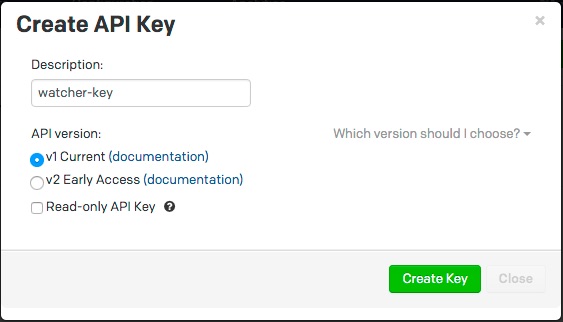
-
Copy and store the key before you close the New API Key dialog.
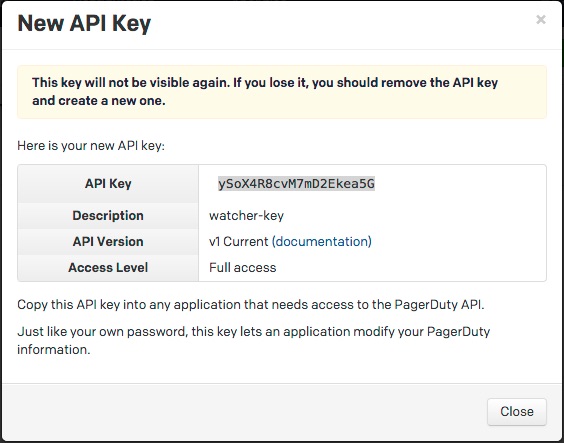
To configure a PagerDuty account, at a minimum you need to specify the account name and API key:
xpack.notification.pagerduty:
  account:
    my_pagerduty_account:
      service_api_key: d3b07384d113edec49eaa6238ad5ff0
You can also specify defaults for the PagerDuty event attributes: .
xpack.notification.pagerduty:
  account:
    my_pagerduty_account:
      service_api_key: d3b07384d113edec49eaa6238ad5ff0
      event_defaults:
        description: "Watch notification"
        incident_key: "my_incident_key"
        client: "my_client"
        client_url: http://www.example.org
        event_type: trigger
        attach_payload: true
If you configure multiple PagerDuty accounts, you either need to set a default
account or specify which account the event should be sent with in the
pagerduty action.
xpack.notification.pagerduty:
  default_account: team1
  account:
    team1:
      ...
    team2:
      ...
If you configure multiple PagerDuty accounts, you either need to set a default
account or specify which account the event should be sent with in the
pagerduty action.
watcher.actions.pagerduty.service:
  default_account: team1
  account:
    team1:
      ...
    team2:
      ...